Tag: Wi-Fi Security

  • Cyber Security Best Practices: How to Protect Your Data

    Cyber Security Best Practices: How to Protect Your Data

    Cyber threats are no longer limited to large companies or technology experts. Everyday users rely on smartphones, laptops, cloud accounts, online banking, email, and social media. Each connected device can become a target if it is not properly protected.

    Following Cyber Security Best Practices: How to Protect Your Data and Devices can significantly reduce common security risks. The goal is not to create a complicated security system. Instead, it is to build simple habits that protect accounts, devices, networks, and personal information.

    From stronger passwords to software updates and secure backups, small improvements can make a major difference. This guide explains the most important cybersecurity practices and shows how to apply them in everyday life.

    Why Cybersecurity Best Practices Matter

    Your personal data has value. Names, email addresses, account credentials, photos, financial information, and private documents can all become targets for cybercriminals. A compromised account may also provide access to other accounts if passwords have been reused.

    Good cybersecurity is therefore about reducing opportunities for unauthorized access. NIST describes cybersecurity as a continuous process because technology, businesses, and threats keep changing.

    You do not need to be a cybersecurity professional to improve your protection. Start with the basics. Then build stronger habits over time.

    1. Use Strong and Unique Passwords

    Passwords remain one of the most important defenses for online accounts. A weak or reused password can put several accounts at risk at once.

    Create a unique password for every important account. Avoid using obvious information such as your name, birthday, school, favorite team, or other details that someone could easily guess.

    Long passwords or passphrases are generally easier to make strong. A password manager can also help generate and securely store unique passwords. NIST specifically recommends strong passwords and considering a password manager as part of basic cybersecurity hygiene.

    Never share passwords through public posts, messages, or email. If you believe a password has been exposed, change it promptly and check the account for unusual activity.

    2. Turn On Multi-Factor Authentication

    Strong passwords are important, but passwords alone should not be your only layer of protection. Multi-factor authentication (MFA) adds another verification step when you sign in.

    Depending on the service, MFA may use an authentication app, security key, or another verification method. This additional layer can make unauthorized access much harder when a password is compromised. NIST recommends enabling MFA, particularly phishing-resistant MFA where available.

    Start with your most important accounts. These can include your primary email, cloud storage, financial accounts, and other services containing sensitive information.

    3. Keep Your Software Updated

    Software updates are not only about new features. They can also contain security fixes for known vulnerabilities.

    Keep your operating system, web browser, mobile apps, security software, and other regularly used programs updated. Turn on automatic updates when that option is available and appropriate.

    Using outdated software can leave known weaknesses unpatched. The FTC recommends regularly updating software and enabling automatic updates when possible.

    4. Protect Your Smartphone and Computer

    Your devices contain valuable information, so physical and digital protection both matter.

    Use a screen lock with a strong PIN, password, or supported biometric authentication. Configure your device to lock automatically after a period of inactivity. Avoid leaving unlocked devices unattended in public places.

    For laptops and smartphones that store sensitive information, consider using the built-in encryption features offered by your operating system. Encryption can help protect stored data if a device is lost or stolen.

    Only install applications from reputable sources. Before installing an app, review its publisher, requested permissions, and reputation. Remove applications you no longer use.

    5. Learn How to Recognize Phishing

    Phishing is one of the most common ways attackers attempt to steal information. A phishing message may appear to come from a legitimate company, friend, school, service provider, or organization.

    Be cautious when a message creates urgency or asks you to click a link, open an attachment, provide sensitive information, or sign in immediately. Check the sender carefully and look for unusual wording or unexpected requests.

    When you receive an unexpected account alert, avoid using the link in the message. Instead, open the organization’s official website or application yourself and check your account there. CISA’s Secure Our World guidance emphasizes recognizing and reporting phishing rather than clicking suspicious links or attachments.

    CISA cybersecurity and phishing guidance

    6. Secure Your Home Wi-Fi Network

    Your home network connects multiple devices to the internet. A secure router can help create a safer foundation for those devices.

    Change the router’s default administrator credentials. Use a strong Wi-Fi password and choose a modern security standard such as WPA2 or WPA3 when supported by your equipment.

    Keep router firmware updated. You should also review connected devices from time to time and remove devices that you no longer recognize or use.

    If you provide guest Wi-Fi, consider using a separate guest network. The FTC recommends separating guest access from the primary network where appropriate.

    7. Back Up Important Data

    Backups are an essential part of Cyber Security Best Practices: How to Protect Your Data and Devices. Security is not only about preventing attacks. It is also about recovering when something goes wrong.

    Back up important documents, photos, school or work files, and other information that would be difficult to replace. Depending on your needs, you can use a reputable cloud backup service, an external storage device, or both.

    Do not assume that a backup is useful simply because it exists. Periodically check that important files can actually be restored. NIST recommends regularly backing up data and taking steps to protect and test backups.

    8. Protect Your Personal Information

    One of the simplest cybersecurity strategies is to reduce the amount of sensitive information you store or share.

    Think carefully before posting personal information publicly. Details about your location, routines, family, school, workplace, or other private matters can sometimes be combined by attackers to make scams more convincing.

    Review privacy settings on major accounts. Remove old information that you no longer need. For organizations and online business owners, collecting only necessary information can also reduce the impact of a potential data breach.

    The FTC recommends understanding what sensitive information an organization has, where it is stored, and who has access to it.

    9. Be Careful on Public Wi-Fi

    Public networks can be convenient, but you should avoid treating an unfamiliar network as automatically trustworthy.

    When using public Wi-Fi, avoid entering sensitive information on suspicious websites. Make sure websites handling private information use HTTPS. Keep your device’s security features enabled and disable automatic connection to unknown networks when possible.

    For work or other situations requiring remote access to sensitive systems, follow the organization’s security requirements. A properly configured VPN may be appropriate for some environments, but it should not replace strong passwords, MFA, updates, and other basic protections.

    10. Secure Your Email Account

    Your primary email account deserves special attention. If an attacker gains access to your email, they may be able to request password resets for other services.

    Use a unique password and enable MFA. Review recovery email addresses, phone numbers, connected applications, and recent login activity when your provider offers those features.

    Be especially cautious with unexpected messages requesting passwords, verification codes, payments, or confidential information. If a request seems unusual, verify it through a trusted communication channel.

    11. Limit Account Permissions

    Not every application needs access to every part of your account or device. Review permissions regularly and remove access that is no longer necessary.

    This principle is sometimes called least privilege. The idea is simple: give an account, person, or application only the access it needs to perform its job.

    For businesses, this becomes even more important. The FTC recommends controlling access to sensitive information and reviewing whether people still have a legitimate business need for that access.

    12. Create a Simple Cybersecurity Routine

    Cybersecurity works best when it becomes a routine rather than a one-time project.

    Daily Security Habits

    • Think before clicking unexpected links.
    • Lock your devices when you step away.
    • Do not share passwords or verification codes.
    • Be cautious with unexpected attachments and messages.

    Monthly Security Habits

    • Install outstanding software and device updates.
    • Review important account activity.
    • Check account recovery settings.
    • Remove unused applications and unnecessary account access.
    • Confirm that important backups are working.

    For Small Businesses

    Businesses should go beyond individual account protection. Create a simple security policy, train users to recognize phishing, control access to sensitive information, protect remote connections, and maintain tested backups.

    NIST’s Cybersecurity Framework 2.0 Small Business Quick-Start Guide provides a structured starting point for organizations that want to improve cybersecurity risk management.

    NIST Cybersecurity Framework 2.0 Small Business Guide

    Common Cybersecurity Mistakes to Avoid

    Even strong security tools can be undermined by simple mistakes. Avoid using the same password across multiple accounts. Do not ignore software updates for long periods. Avoid clicking unexpected links simply because a message looks professional.

    Another common mistake is assuming that cybersecurity is only a technical problem. Human decisions matter. Regular awareness training can help people recognize suspicious messages and respond appropriately.

    Businesses should also avoid giving every employee or third-party service unrestricted access to sensitive systems. Access should match legitimate business needs.

    What to Do After a Security Incident

    If you believe an account or device has been compromised, act quickly. Change affected passwords from a trusted device and enable MFA if it is not already active. Review recent account activity and sign out of unfamiliar sessions where the service allows it.

    If a device is infected or a business system has been compromised, follow the relevant incident-response procedures. For businesses, having a response plan before an incident occurs can reduce confusion and downtime.

    The FTC recommends that businesses maintain an incident response plan and prepare for steps such as investigating the incident, protecting remaining systems, and communicating with affected parties when necessary.

    Final Thoughts on Cyber Security Best Practices

    Effective cybersecurity does not require perfection. It requires consistent habits and multiple layers of protection.

    The most important steps are straightforward: use strong and unique passwords, enable MFA, keep software updated, protect your devices, recognize phishing, secure your Wi-Fi, maintain reliable backups, and limit access to sensitive information.

    Following these Cyber Security Best Practices: How to Protect Your Data and Devices can help reduce everyday security risks and improve your ability to recover when something unexpected happens.

    Cybersecurity is an ongoing process. Review your habits regularly and improve one area at a time. A few minutes spent strengthening your accounts today can help prevent much bigger problems later.

    For additional security guidance, consult the FTC cybersecurity resources and official NIST recommendations.

  • How to Secure Your Home Wi-Fi Network From Cyber Threats

    How to Secure Your Home Wi-Fi Network From Cyber Threats

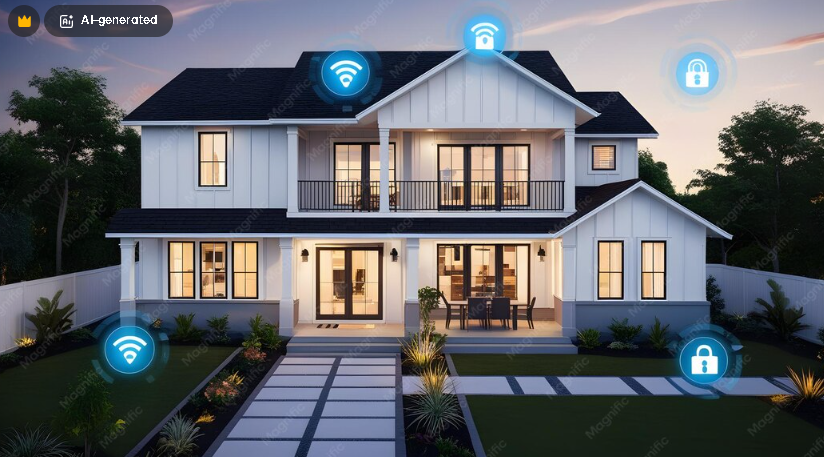
    Your home Wi-Fi network connects phones, laptops, smart TVs, gaming consoles, cameras, printers, and other devices to the internet. That convenience also makes your router an important part of your digital security. If your network is poorly configured, attackers may have more opportunities to access devices, steal information, or misuse your connection.

    Learning How to Secure Your Home Wi-Fi Network From Cyber Threats does not require advanced technical knowledge. A few practical changes can significantly improve your home network security. These include changing default passwords, enabling modern Wi-Fi encryption, updating router firmware, securing connected devices, and monitoring unusual activity.

    This guide explains the most important steps in simple language. It also shows how to build a layered approach to home network security that works for everyday households.

    Why Home Wi-Fi Security Matters

    Your router is the gateway between your home devices and the internet. Every connected device depends on it for network access. This makes the router an important security control point.

    A weak Wi-Fi password can allow an unauthorized person to connect to your network. An outdated router can contain known vulnerabilities. Poorly configured smart devices can also create additional risks.

    The CISA home network security guidance recommends practical steps such as changing default passwords, keeping software updated, and securing wireless networks.

    Strong Wi-Fi security is especially important if you use your connection for online banking, shopping, remote work, school, cloud storage, or other sensitive activities.

    1. Change Your Router’s Default Password

    One of the first steps in Wi-Fi security is changing the router’s default administrator password.

    Many routers come with a preset username and password. Attackers may know these credentials because they can be publicly documented or easily discovered. Leaving them unchanged gives an attacker an unnecessary advantage.

    Create a strong, unique administrator password. Do not reuse a password from your email, social media, or other accounts.

    Remember that your router may have two separate passwords. One controls access to the router’s administration panel. The other protects the Wi-Fi network itself. Secure both.

    2. Use Strong Wi-Fi Encryption

    Your wireless network should use modern encryption. When configuring a new router, look for WPA3 if your devices support it.

    WPA2 is also widely used and can provide strong protection when configured correctly. Older standards such as WEP should not be used for modern home networks.

    The Wi-Fi Alliance security information provides background on modern wireless security technologies, including WPA3.

    If your router supports WPA3 and your devices are compatible, using WPA3 can provide an additional layer of modern wireless protection.

    3. Create a Strong Wi-Fi Password

    Your Wi-Fi password is the key to your wireless network. Avoid simple passwords, names, addresses, birthdays, or common phrases.

    A strong password should be difficult to guess and different from passwords used for other accounts.

    Password length matters. A longer passphrase made from several unrelated words can be easier to remember while providing strong resistance against guessing attacks.

    Do not share your primary Wi-Fi password unnecessarily. If your router provides a guest network, use it for visitors instead.

    4. Update Your Router Firmware

    Router manufacturers regularly release firmware updates. These updates can fix security vulnerabilities, improve stability, and add features.

    Check your router manufacturer’s support page or administration interface for available updates. Some modern routers can install updates automatically.

    Keeping the router updated is one of the most important home cybersecurity habits. A strong password cannot compensate for a router running vulnerable software.

    Why Router Updates Are Important

    Security researchers regularly discover vulnerabilities in networking equipment. Once a vulnerability becomes public, attackers may attempt to exploit devices that have not been patched.

    For this reason, do not ignore firmware notifications. If your router no longer receives security updates from its manufacturer, consider replacing it with a supported model.

    5. Change the Router’s Default Network Name

    The Wi-Fi network name is known as the SSID. Changing the default SSID is not a replacement for strong encryption, but it can help distinguish your network from other nearby networks.

    Avoid putting personal information in the network name. Your full name, address, apartment number, or phone number does not belong in your SSID.

    Choose a neutral name that does not reveal unnecessary information about your household.

    6. Disable Features You Do Not Need

    Routers often include features designed for convenience. Some may not be necessary for your household.

    Review the router settings and disable services you do not use. Examples may include unnecessary remote administration features or outdated wireless standards.

    Remote administration deserves particular attention. If you do not need to manage your router from outside your home network, disabling remote access can reduce the number of ways an attacker might attempt to reach the administration interface.

    Do not change advanced settings without understanding their purpose. If you are unsure, consult your router manufacturer’s documentation.

    7. Create a Guest Wi-Fi Network

    A guest network can separate visitors from your primary home network. Instead of giving guests the password used by your personal devices, provide access through the guest network.

    This can be useful when friends or family members need internet access but do not need access to printers, storage devices, computers, or other equipment on your primary network.

    Many modern routers allow you to create a guest network with its own password and access controls.

    8. Secure Your Smart Home Devices

    Smart TVs, speakers, cameras, thermostats, appliances, and other Internet of Things devices can increase the number of potential security entry points in a home.

    Before connecting a smart device, change its default credentials if required. Install available firmware updates and remove devices you no longer use.

    Review privacy and network permissions as well. A device does not necessarily need access to every other device on your network.

    For larger smart-home setups, consider placing IoT devices on a separate network or VLAN if your router supports that feature.

    9. Keep Computers and Phones Updated

    Your router is only one part of your home network. Every connected device also needs protection.

    Install operating system and application updates promptly. Security updates can address vulnerabilities that attackers may otherwise exploit.

    Use screen locks and strong account passwords. Enable multi-factor authentication on important online accounts whenever it is available.

    For additional guidance, the CISA Secure Our World resources provide practical advice about passwords, software updates, phishing, and multi-factor authentication.

    10. Turn Off Unused Devices

    An unused device does not need to remain connected to your network. If you no longer use an old smart device, printer, camera, or other network-enabled product, disconnect it.

    Removing unnecessary devices reduces the number of systems you need to maintain and update.

    Before disposing of a smart device, follow the manufacturer’s instructions for removing personal information and resetting it to factory settings.

    11. Protect Your DNS Settings

    DNS, or the Domain Name System, helps translate domain names into IP addresses. Your router or devices may use DNS servers provided by your internet service provider or another provider.

    For most households, the default DNS configuration works adequately. However, some users may choose a reputable DNS service that offers additional security or filtering features.

    Do not assume that changing DNS automatically makes your network private or anonymous. DNS is only one part of internet security.

    12. Disable WPS If You Do Not Need It

    Some routers include Wi-Fi Protected Setup, commonly known as WPS. It was designed to make connecting devices easier.

    If you do not use WPS, consider disabling it. The exact risks depend on the router and WPS implementation, so follow the manufacturer’s recommendations.

    Modern routers often provide easier and more secure alternatives for adding devices to a wireless network.

    13. Use a Firewall

    Many home routers include built-in firewall functionality. Make sure it is enabled unless you have a specific configuration that requires otherwise.

    Your computers and other devices may also have their own firewall protections. These layers can work together to control unwanted network connections.

    Do not disable security features simply to solve a connection problem without understanding the consequences. Instead, check the application’s documentation or router support information.

    14. Watch for Suspicious Network Activity

    Many routers provide a list of connected devices. Check this list occasionally.

    If you see an unfamiliar device, investigate it before assuming that your network has been hacked. It could be a smart appliance, television, printer, or another device that you forgot about.

    If you cannot identify a connected device, change your Wi-Fi password and review your router’s security settings. Also check which devices in your home need to reconnect afterward.

    15. Be Careful With Public and Shared Networks

    Home Wi-Fi security does not protect you when you connect to someone else’s network. Public Wi-Fi requires a separate security mindset.

    When using public networks, avoid connecting automatically to unknown Wi-Fi hotspots. Use HTTPS websites, keep your devices updated, and consider a reputable VPN when it fits your privacy needs.

    A VPN can add another layer of protection on untrusted networks, but it does not replace secure account practices or device security.

    Common Home Wi-Fi Security Mistakes

    Even a modern router can become less secure because of simple configuration mistakes.

    • Keeping the default administrator password.
    • Using a short or predictable Wi-Fi password.
    • Leaving outdated router firmware installed.
    • Using obsolete Wi-Fi encryption.
    • Giving visitors access to the primary network unnecessarily.
    • Leaving unused smart devices connected.
    • Enabling remote administration without needing it.
    • Ignoring security alerts and firmware updates.
    • Using the same password for multiple accounts.

    Avoiding these mistakes can significantly improve your wireless network security.

    Home Wi-Fi Security Checklist

    Use this checklist when reviewing your network:

    • Change the router administrator password.
    • Use WPA3 or WPA2 with a strong password.
    • Update router firmware regularly.
    • Change the default SSID if appropriate.
    • Create a guest Wi-Fi network.
    • Disable unnecessary remote administration.
    • Review WPS and disable it if you do not need it.
    • Keep phones, computers, and smart devices updated.
    • Remove devices you no longer use.
    • Enable firewall protections.
    • Use multi-factor authentication for important accounts.
    • Review connected devices periodically.

    Final Thoughts

    Knowing How to Secure Your Home Wi-Fi Network From Cyber Threats is an important part of modern digital security. Your router connects many parts of your digital life, so protecting it should be a priority.

    Start with the basics. Change default credentials, use modern Wi-Fi encryption, create a strong password, and install firmware updates. Then secure your smart devices, create a guest network, review unnecessary features, and monitor connected devices.

    No single security measure can stop every cyber threat. However, several layers of protection can make your home network much harder to compromise.

    As your household adds new phones, computers, smart appliances, and connected services, make network security part of your regular digital routine. A few minutes spent reviewing your router and connected devices can help protect your personal information, accounts, and devices for the long term.